PADLET - FINAL EXAM
Friday, May 24, 2019

Monday, May 20, 2019
Radial Design
Targets:
I can create a radial design using adobe programs.
I can identify color schemes in art and design.
Balance (RADIAL)


Steps:
1. Have a friend (or me) take a picture of you. Full body in an interesting pose with negative space.
2. Open up a new file in Photoshop 8x8in 200 res.
3. Place embed your picture and cut out with magnetic lasso tool or you can mask it out.
4. Place rulers.
VIDEO - HOW TO CUT OUT BODY WITH MAGNETIC LASSO TOOL
VIDEO - HOW TO MAKE SYMMETRY HAPPEN
Monday, May 13, 2019
Catch Up
Portfolio Catch Up Day and Digital Paintings.
Look Here
Slides:
Contrast - 4 example logos from web
Allignment - 4 example logos from web
Repetition - 4 example logos from web
Proximity - 4 example logos from web
Contrast - 5 examples you made on Illustrator
Allignment - 5 examples you made on Illustrator
Repetition - 5 examples you made on Illustrator
Proximity - 5 examples you made on Illustrator
12 Logos
Final Logo Page
Logo Write up - Include: 2 Elements or Principles, 2 Tools Used, 2 Feelings
Portfolio Cover
Digital Painting - 1 Picture of the photo / 1 Picture of just the painting
3 Gifs - 1 Done with multiple pictures of you
1 Done with illustration you have made
1 Done by making a short movie
Look Here
Slides:
Contrast - 4 example logos from web
Allignment - 4 example logos from web
Repetition - 4 example logos from web
Proximity - 4 example logos from web
Contrast - 5 examples you made on Illustrator
Allignment - 5 examples you made on Illustrator
Repetition - 5 examples you made on Illustrator
Proximity - 5 examples you made on Illustrator
12 Logos
Final Logo Page
Logo Write up - Include: 2 Elements or Principles, 2 Tools Used, 2 Feelings
Portfolio Cover
Digital Painting - 1 Picture of the photo / 1 Picture of just the painting
3 Gifs - 1 Done with multiple pictures of you
1 Done with illustration you have made
1 Done by making a short movie
Giphy!!!
Make your own Giphy!!
Targets:
- I feel confident using digital cameras.
- I feel confident using digital tools to compose and edit photographs.
- I can effectively use digital tools to make art that communicates my ideas to an audience
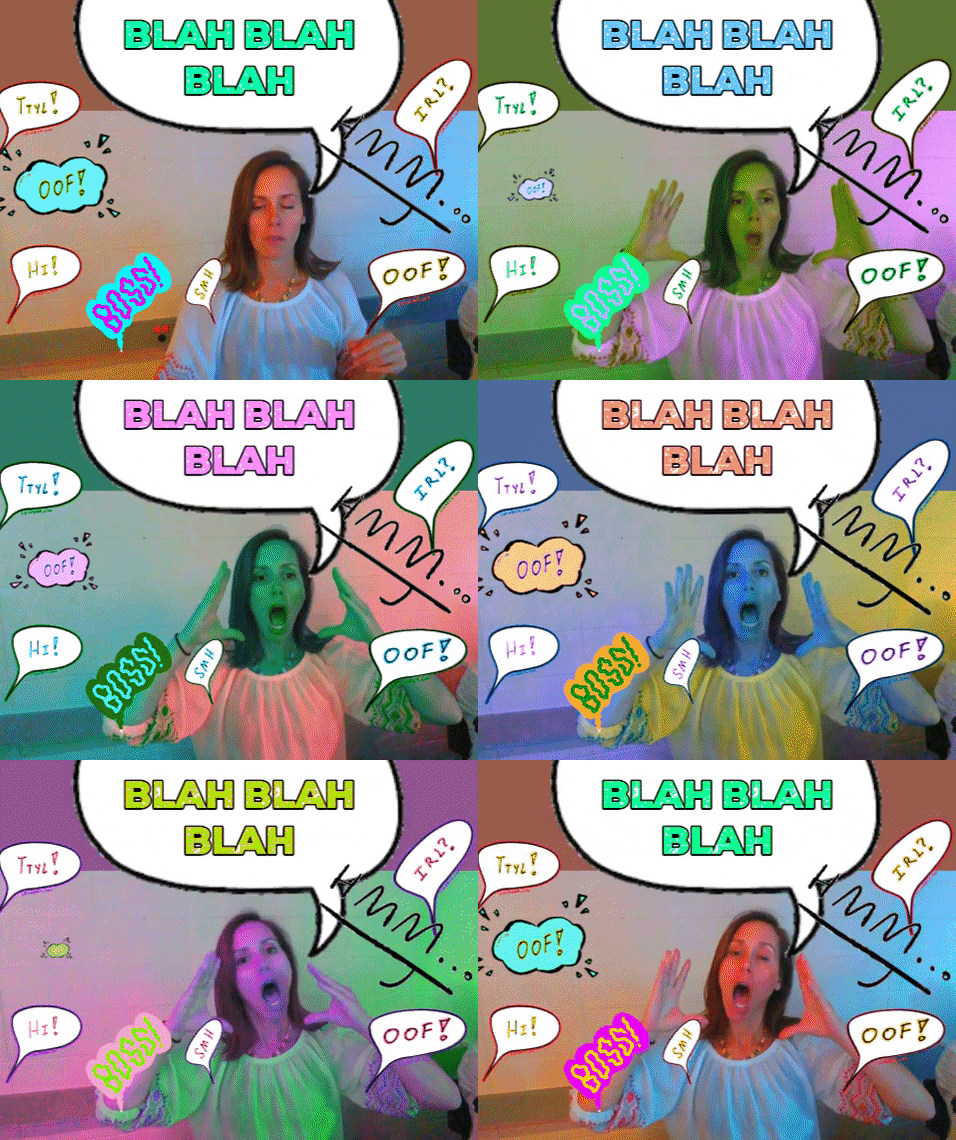
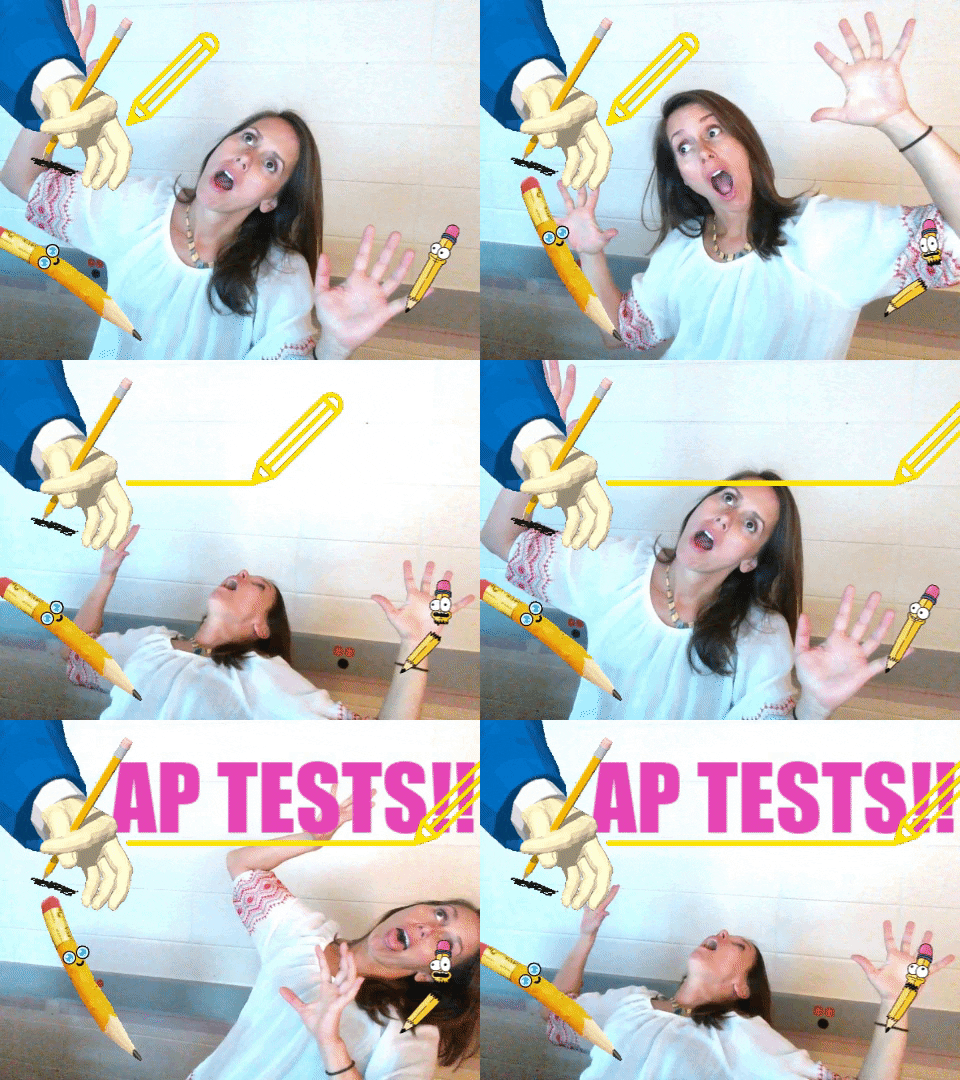
Make 3-4 small GIF animations for your portfolio: Use Giphy.com
1. From youtube.

2. Stop Motion from webcam and giphy

3. Traditional Drawing with webcam and giphy
Targets:
- I feel confident using digital cameras.
- I feel confident using digital tools to compose and edit photographs.
- I can effectively use digital tools to make art that communicates my ideas to an audience
Make 3-4 small GIF animations for your portfolio: Use Giphy.com
1. From youtube.

2. Stop Motion from webcam and giphy

3. Traditional Drawing with webcam and giphy

Thursday, May 9, 2019
Portfolio Cover
PORTFOLIO COVER:
Make or at least begin to make a Portfolio Cover in Illustrator.
New file that is 12 inches wide by 9 inches tall
Must include name of class and your name
Include your monogram in some way
Use design seeds or adobe color picker
Include repetition
Use any/all techniques you have learned in Illustrator to create cover.


Target:
- My work is stronger because I use the elements and principles of art/design
- I feel confident creating designs in adobe illustrator
- I honestly experiment with many design choices before choosing my best option
- I honestly research examples of graphic design and photography for inspiration
New file that is 12 inches wide by 9 inches tall
Must include name of class and your name
Include your monogram in some way
Use design seeds or adobe color picker
Include repetition
Use any/all techniques you have learned in Illustrator to create cover.


Great Video that will focus on the background of your portfolio cover or your final logo cover!!
Great video that will help with text in final logo and portfolio cover!!
Monday, May 6, 2019
Final Logo Assignment
Final Logo Project
Target:
- My work is stronger because I use the elements and principles of art/design
- I feel confident creating designs in adobe illustrator
- I honestly experiment with many design choices before choosing my best option
- I honestly research examples of graphic design and photography for inspiration
I will do this by following this steps:
Using Illustrator: Create a 8.5x11in file
- Include a large version of your logo
- Include at least 3-4 smaller versions of your logo
- Use intentional color with design seeds and Adobe Color
- Include a background
- Have a professional, well designed layout
- Include your full name


Tuesday, April 30, 2019
Step 2: Logos
Targets:
Today you will:
1. Look closely at your logos, select your 4 BEST LOGOS (they must be logos with your initials and or name) and put them into a new Illustrator Document size 8.5 x 11.
2. Your 4 Best logos will be placed at the top of the document. You will build from these logos using:
Color
Gradients
Effects
Line Variation
Font Changes
Transparencies and more
4. You will make 12 new logos during this process.
Don't forget to use color palettes like design seeds and Adobe Color


- My work is stronger because I use the elements and principles of art/design
- I feel confident creating designs in adobe illustrator
- I honestly experiment with many design choices before choosing my best option
- I honestly research examples of graphic design and photography for inspiration
Today you will:
1. Look closely at your logos, select your 4 BEST LOGOS (they must be logos with your initials and or name) and put them into a new Illustrator Document size 8.5 x 11.
2. Your 4 Best logos will be placed at the top of the document. You will build from these logos using:
Color
Gradients
Effects
Line Variation
Font Changes
Transparencies and more
4. You will make 12 new logos during this process.
Don't forget to use color palettes like design seeds and Adobe Color
VIDEOS FOR TEXT WITH COLOR AND GRADIENTS AND USING DESIGN SEEDS!!
- VIDEO #2 = Gradients
- VIDEO #3 = Drop Shadow & Glow
VIDEO #4 = 3-D Effect
- VIDEO #5 = CLIPPING MASK
Saturday, April 20, 2019
LOGOS
Target:
I honestly experiment with many design choices before choosing my best option
Today
1. Begin in illustrator with an 8.5x11in file and call it Logo Contrast. Make 5 Logos with your initials using the rule of Contrast. Limit colors to Black/ White and Grey Scales. Think about your interests and personality when creating.
2. Open a new file and call it Logo Repetition. Make 5 more logos using the rule of Repetition. Limit colors to Black/White and Grey scales.
3. If you are really fast you may continue with allignment and then proximity remember we need 5 logos and keep them in blacks/whites/greys.
4. Place your four docs. into your google slide portfolio - each on their own slide. Complete 1 write up for this assignment.
Start Logo Assignments by looking HERE
And take a look at this presentation
Text Video GREAT REVIEW #1
Text Video Great Review #2
Monday, April 15, 2019
Prepare for Grading Period
Prepare for Grading Period Today.
Target:
I feel confident using adobe programs and online tools to make digital art.
TODAY: WORK ON ALL ILLUSTRATOR VIDEOS. YOU WILL END UP CREATING A MONSTER! VIDEOS 14-18 WILL HELP
Your Portfolio should be like this one....
Refer to this link for Portfolio Grading if need be
These are the items that should be in your portfolio...
1. Perspective and write up (9th hour DOES NOT NEED #1)
2. Surrealism and Write up
3. Rule of Thirds - 2 examples and definition
4. Focus - 2 examples and definition
5. Framing - 2 examples and definition
6. Light and Shadow - 2 examples and definition
8. Georges and Write up
9. Photo Editing
10. Photo Shoot
11. Digital Painting Progress
12. Illustrator Practice Exercises
When done with portfolio work on ALL Illustrator Practice Exercise Listed. #1-6, 11-14, 23. Directions link here!
Target:
I feel confident using adobe programs and online tools to make digital art.
TODAY: WORK ON ALL ILLUSTRATOR VIDEOS. YOU WILL END UP CREATING A MONSTER! VIDEOS 14-18 WILL HELP
Your Portfolio should be like this one....
Refer to this link for Portfolio Grading if need be
These are the items that should be in your portfolio...
1. Perspective and write up (9th hour DOES NOT NEED #1)
2. Surrealism and Write up
3. Rule of Thirds - 2 examples and definition
4. Focus - 2 examples and definition
5. Framing - 2 examples and definition
6. Light and Shadow - 2 examples and definition
8. Georges and Write up
9. Photo Editing
10. Photo Shoot
11. Digital Painting Progress
12. Illustrator Practice Exercises
When done with portfolio work on ALL Illustrator Practice Exercise Listed. #1-6, 11-14, 23. Directions link here!
Friday, April 12, 2019
ILLUSTRATOR VIDEOS
Friday Schedule:
TARGET FOR ILLUSTRATOR PRACTICE:
I feel confident using adobe programs and online tools to make digital art.
Please go to this the How to Videos tab above or click here and get to know illustrator better by completing 5 ore more tutorials today. Save your work in a folder called Practice Illustrator. We will place your work into your portfolio.
Practice Videos to choose from include the following:
1-6, 11-14, 23.
TARGET FOR ILLUSTRATOR PRACTICE:
I feel confident using adobe programs and online tools to make digital art.
Please go to this the How to Videos tab above or click here and get to know illustrator better by completing 5 ore more tutorials today. Save your work in a folder called Practice Illustrator. We will place your work into your portfolio.
Practice Videos to choose from include the following:
1-6, 11-14, 23.
Tuesday, April 9, 2019
Photo Editing
Target for Photo Editing:
- I take many photographs so I can explore a wide range of options to choose from for my final project.
- I feel confident in my ability to choose my strongest photographs.
- I honestly experiment with many design choices before choosing my best option.
PHOTO EDITING
Pick one of your photos and edit it 7 different ways showing me...
- Original Photo
- Black and white - masking in some color
- High Contrast
- Low Contrast
- Enhanced Color
- Experimental (2)
- Extreme Crop (On one of the above)
Here is a video in case you missed it...
Below you will see my edited photographs slide in my portfolio (please make sure to also have Experimentals and Extreme Crop included in yours)

Friday, April 5, 2019
Looking to Move ahead??....
.....Open Adobe Illustrator and try these tutorials!!
Target
I feel confident using adobe programs and online tools to make digital art.
Work on creating a DETAILED monster in Adobe Illustrator:
File Size on Illustrator is 8x8in.
Detailed Means: Think eyebrows, eye lashes, pupils, horns, nails, moles, claws, accessories like shoes, earings, jewelery, buttons on clothing, what is monster holding? Etc.
SAVE YOUR WORK AS:
yourlastname_monster


REFER TO THESE VIDEOS AS A REMINDER HOW TO CREATE ON ILLUSTRATOR
MAKE A:Rectangle
Square
Edit Fill and Stroke appearance
Illustrator Basics Tutorial
MAKE A:
Rounded Rectangle
Circle/elipse
Star
Polygon
Triangle
Illustrator Basics More Shapes
Use the shape builder tool to melt shapes together or subtract areas of overlap. Make the following shapes:
Almond Eye Shape
Crescent Moon Shape
Cloud Shape
Illustrator Basics: Shape Builder Tool
Use the direct selection tool to alter the anchor points on a circle. Make the following shapes:
Egg Shape
Heart Shape
Drop of water
Illustrator Basics (Direct Selection tool to alter Shapes)
Wednesday, April 3, 2019
Google Photos App
Schedule for Friday...
1. Finish Up Georges: Turn in as lastname_georges
MUST BE A JPEG
2. Write up for Surreal and Georges
-2 Tools
-2 Elements or Principles
- 2 Feeings - tell me something that was difficult for you.
3. Digital Painting
4. Photoshoot due FRIDAY!! Must be in the google photos app
5. OPTIONAL PROJECT: Lundahl Poster
Target:
My work communicates an idea to an audience because I have made good choices with the elements and principles.

Create a poster for Lundahl School for the 8th Grade Dance that says, 'See you at the Swamp'.
Size 11x17 200 res. Must include the Gator Logo.
Example Poster:
1. Finish Up Georges: Turn in as lastname_georges
MUST BE A JPEG
2. Write up for Surreal and Georges
-2 Tools
-2 Elements or Principles
- 2 Feeings - tell me something that was difficult for you.
3. Digital Painting
4. Photoshoot due FRIDAY!! Must be in the google photos app
5. OPTIONAL PROJECT: Lundahl Poster
Target:
My work communicates an idea to an audience because I have made good choices with the elements and principles.

Create a poster for Lundahl School for the 8th Grade Dance that says, 'See you at the Swamp'.
Size 11x17 200 res. Must include the Gator Logo.
Example Poster:
Tuesday, April 2, 2019
Welcome Back From Spring Break
Georges/Photo....
Targets for Georges:
Through close analyzation students can design a portrait in the style of Geraldine Georges using Adobe programs.
- Limited Color Palette
- Neatness
- Does your work resemble something Georges would do?
- Interesting Negative Space
- Repetition
Photo Assignment: Photos Due by Friday
Targets For Photos:
- I feel confident using digital cameras.
- I feel confident using digital tools to compose and edit photographs.
Scavenger Hunt
Take 2 images of the same thing for each prompt.
THIS IS DUE MONDAY MARCH 18

Targets for Georges:
Through close analyzation students can design a portrait in the style of Geraldine Georges using Adobe programs.
- Limited Color Palette
- Neatness
- Does your work resemble something Georges would do?
- Interesting Negative Space
- Repetition
Photo Assignment: Photos Due by Friday
Targets For Photos:
- I feel confident using digital cameras.
- I feel confident using digital tools to compose and edit photographs.
Scavenger Hunt
Take 2 images of the same thing for each prompt.
THIS IS DUE MONDAY MARCH 18
- Something close
- Something far
- Looking up
- Looking down
- Extreme Zoom
- Natural thing
- Manmade thing
- Shadows
- Face
- Lines
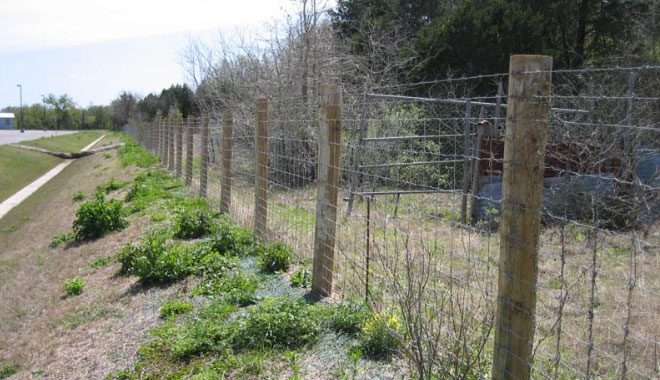

12. some thing warm or cold
13.Something important to you
Sunday, March 17, 2019
Geraldine Georges cont.
Background Spots Video
Quick Selection Tool
Pen Pressure Tool LOVE THIS!!!!!
Wednesday, March 13, 2019
Photography
Targets:
- feel confident using digital cameras.
- I feel confident using digital tools to compose and edit photographs
PHOTO UNIT!!!!!!!!
MAKE A SLIDE FOR EACH
1. Rule of Thirds - Definition and 2 Images watch this!!!
2. Focus - Definition and 2 Images
3. Framing - Definition and 2 Images
4. Light and Shadow - Definition and 2 Images
*Helpful hint. Google Rule of Thirds in photography to find definition and image.
Sample Slide

Take 2 images of the same thing for each prompt.
THIS IS DUE MONDAY MARCH 18
- Something close
- Something far
- Looking up
- Looking down
- Extreme Zoom
- Natural thing
- Manmade thing
- Shadows
- Face
- Lines

12. some thing warm or cold

13.Something important to you
DUE MONDAY MARCH 18.
DON'T DELETE ANY OF THEM!!!
ANYONE NEED A CAMERA??DON'T DELETE ANY OF THEM!!!
NOTE:
If you have a smart phone that you will use to take pics you should download the following apps
Google Drive- sign in as your d155 identity. Upload your pics from your phone to Drive and they are ready at school.

Google Photos- sign in as your d155 identity
*important to use this if you have no room on your phone!!!
Monday, March 11, 2019
Geraldine Georges
Click on the image below

Geraldine Georges
FlipGrid
Target
Through close analyzation students can design a portrait in the style of Geraldine Georges using Adobe programs.
 1. Students collaborate with others using Flip Grid in order to analyze a work of art and identify how the elements of art and principles of design are used.
2. Student will observe portraits online or take one of their own that they imagine would work well for creating their own portrait in the style of Georges.


Explain why these are poor photos to use?
Steps:
1. Using Photoshop, create a file that is 8x10 or 10x8 200 resolution. Make sure you are in RGB mode.
2. Place embedded photo into your work and make a copy of that layer so you now have 2 portrait layers.
3. Review Georges Page and how she creates a back ground, That is what we will be doing first.
View the first 2 videos below for background steps.
Step 1 Masking the Face
aka - cutting out the face
Background Spots Video
Quick Selection Tool
Pen Pressure Tool LOVE THIS!!!!!
Tuesday, February 26, 2019
Surreal
SURREALISM
Target:
- I understand the basics of the Surrealist Art Movement.
- I am confident that I can make my art surreal through: levitation, dislocation, transformation, juxtaposition, gravity, color and more.
.
What is your environment?
Select your pictures - Must use 5 or more images
Create your file: 8x10 or 10x8 200 Res.

- Think of a dream you have had. Can you illustrate this dream through Photoshop?
- Do you have a fear or concern in life? How can you illustrate this using Photoshop and surrealism?
- Can YOU be in this image some way? Get those cameras out and TAKE PICTURES!
- Maybe you want to make a change in this world - can you do this through this project?
VIDEO: Clone Stamp Tool
VIDEO: Mask a Fire
VIDEO: Mask tool to Erase
Subscribe to:
Posts (Atom)