PADLET - FINAL EXAM
Friday, May 24, 2019

Monday, May 20, 2019
Radial Design
Targets:
I can create a radial design using adobe programs.
I can identify color schemes in art and design.
Balance (RADIAL)


Steps:
1. Have a friend (or me) take a picture of you. Full body in an interesting pose with negative space.
2. Open up a new file in Photoshop 8x8in 200 res.
3. Place embed your picture and cut out with magnetic lasso tool or you can mask it out.
4. Place rulers.
VIDEO - HOW TO CUT OUT BODY WITH MAGNETIC LASSO TOOL
VIDEO - HOW TO MAKE SYMMETRY HAPPEN
Monday, May 13, 2019
Catch Up
Portfolio Catch Up Day and Digital Paintings.
Look Here
Slides:
Contrast - 4 example logos from web
Allignment - 4 example logos from web
Repetition - 4 example logos from web
Proximity - 4 example logos from web
Contrast - 5 examples you made on Illustrator
Allignment - 5 examples you made on Illustrator
Repetition - 5 examples you made on Illustrator
Proximity - 5 examples you made on Illustrator
12 Logos
Final Logo Page
Logo Write up - Include: 2 Elements or Principles, 2 Tools Used, 2 Feelings
Portfolio Cover
Digital Painting - 1 Picture of the photo / 1 Picture of just the painting
3 Gifs - 1 Done with multiple pictures of you
1 Done with illustration you have made
1 Done by making a short movie
Look Here
Slides:
Contrast - 4 example logos from web
Allignment - 4 example logos from web
Repetition - 4 example logos from web
Proximity - 4 example logos from web
Contrast - 5 examples you made on Illustrator
Allignment - 5 examples you made on Illustrator
Repetition - 5 examples you made on Illustrator
Proximity - 5 examples you made on Illustrator
12 Logos
Final Logo Page
Logo Write up - Include: 2 Elements or Principles, 2 Tools Used, 2 Feelings
Portfolio Cover
Digital Painting - 1 Picture of the photo / 1 Picture of just the painting
3 Gifs - 1 Done with multiple pictures of you
1 Done with illustration you have made
1 Done by making a short movie
Giphy!!!
Make your own Giphy!!
Targets:
- I feel confident using digital cameras.
- I feel confident using digital tools to compose and edit photographs.
- I can effectively use digital tools to make art that communicates my ideas to an audience
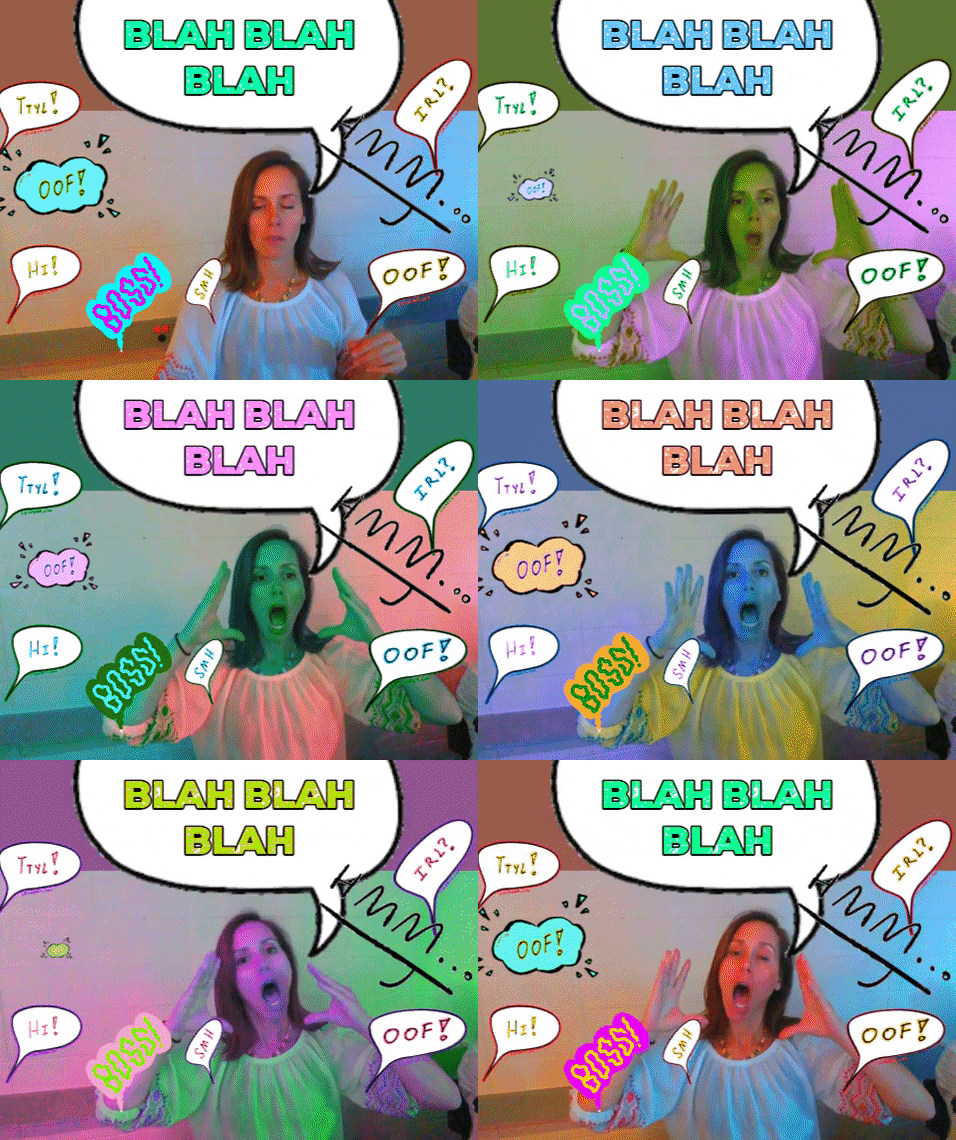
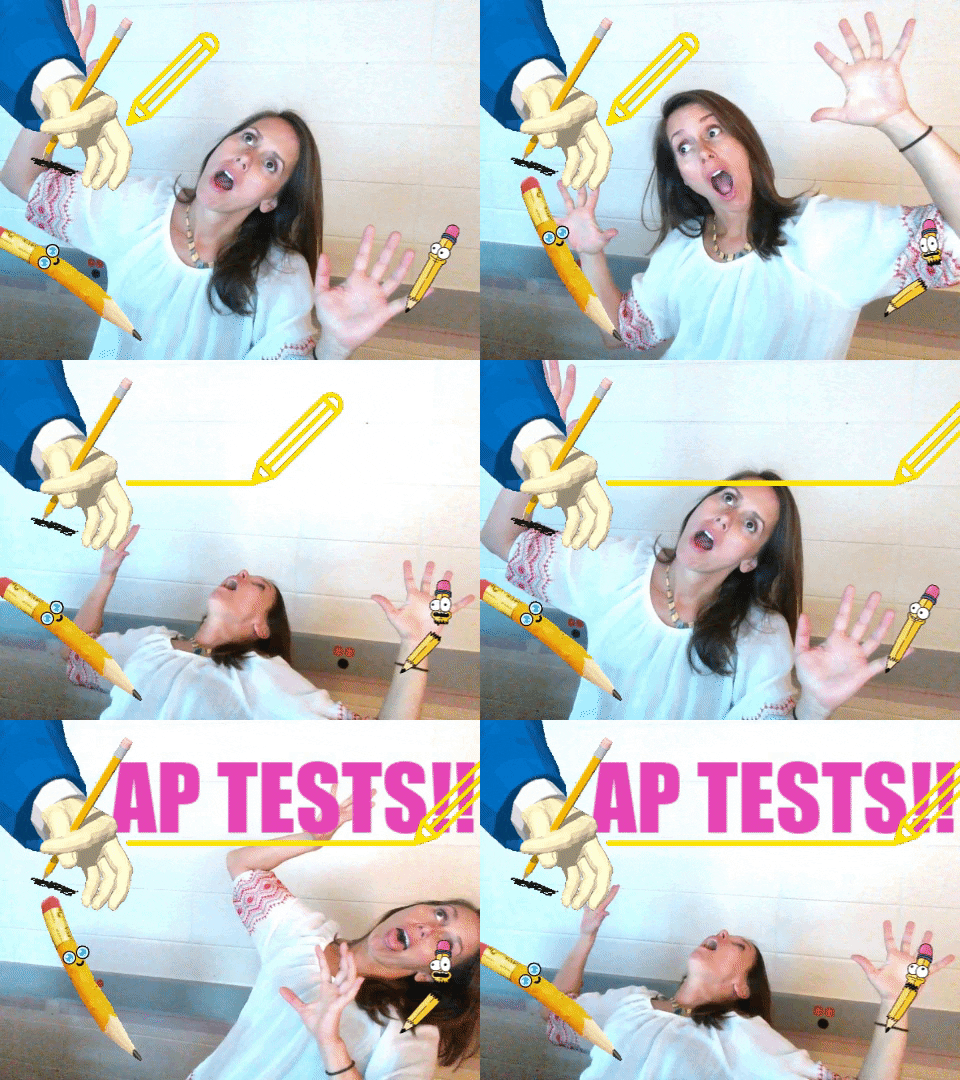
Make 3-4 small GIF animations for your portfolio: Use Giphy.com
1. From youtube.

2. Stop Motion from webcam and giphy

3. Traditional Drawing with webcam and giphy
Targets:
- I feel confident using digital cameras.
- I feel confident using digital tools to compose and edit photographs.
- I can effectively use digital tools to make art that communicates my ideas to an audience
Make 3-4 small GIF animations for your portfolio: Use Giphy.com
1. From youtube.

2. Stop Motion from webcam and giphy

3. Traditional Drawing with webcam and giphy

Thursday, May 9, 2019
Portfolio Cover
PORTFOLIO COVER:
Make or at least begin to make a Portfolio Cover in Illustrator.
New file that is 12 inches wide by 9 inches tall
Must include name of class and your name
Include your monogram in some way
Use design seeds or adobe color picker
Include repetition
Use any/all techniques you have learned in Illustrator to create cover.


Target:
- My work is stronger because I use the elements and principles of art/design
- I feel confident creating designs in adobe illustrator
- I honestly experiment with many design choices before choosing my best option
- I honestly research examples of graphic design and photography for inspiration
New file that is 12 inches wide by 9 inches tall
Must include name of class and your name
Include your monogram in some way
Use design seeds or adobe color picker
Include repetition
Use any/all techniques you have learned in Illustrator to create cover.


Great Video that will focus on the background of your portfolio cover or your final logo cover!!
Great video that will help with text in final logo and portfolio cover!!
Monday, May 6, 2019
Final Logo Assignment
Final Logo Project
Target:
- My work is stronger because I use the elements and principles of art/design
- I feel confident creating designs in adobe illustrator
- I honestly experiment with many design choices before choosing my best option
- I honestly research examples of graphic design and photography for inspiration
I will do this by following this steps:
Using Illustrator: Create a 8.5x11in file
- Include a large version of your logo
- Include at least 3-4 smaller versions of your logo
- Use intentional color with design seeds and Adobe Color
- Include a background
- Have a professional, well designed layout
- Include your full name


Tuesday, April 30, 2019
Step 2: Logos
Targets:
Today you will:
1. Look closely at your logos, select your 4 BEST LOGOS (they must be logos with your initials and or name) and put them into a new Illustrator Document size 8.5 x 11.
2. Your 4 Best logos will be placed at the top of the document. You will build from these logos using:
Color
Gradients
Effects
Line Variation
Font Changes
Transparencies and more
4. You will make 12 new logos during this process.
Don't forget to use color palettes like design seeds and Adobe Color


- My work is stronger because I use the elements and principles of art/design
- I feel confident creating designs in adobe illustrator
- I honestly experiment with many design choices before choosing my best option
- I honestly research examples of graphic design and photography for inspiration
Today you will:
1. Look closely at your logos, select your 4 BEST LOGOS (they must be logos with your initials and or name) and put them into a new Illustrator Document size 8.5 x 11.
2. Your 4 Best logos will be placed at the top of the document. You will build from these logos using:
Color
Gradients
Effects
Line Variation
Font Changes
Transparencies and more
4. You will make 12 new logos during this process.
Don't forget to use color palettes like design seeds and Adobe Color
VIDEOS FOR TEXT WITH COLOR AND GRADIENTS AND USING DESIGN SEEDS!!
- VIDEO #2 = Gradients
- VIDEO #3 = Drop Shadow & Glow
VIDEO #4 = 3-D Effect
- VIDEO #5 = CLIPPING MASK
Subscribe to:
Posts (Atom)